• Games
  • Industry
  • Resources
  • Community
  • Learning
  • Support
Development
Unity Engine
Build 2D and 3D games for any platform
DownloadPlans and pricing
Monetization
In-App Purchase (IAP)
Discover and manage IAP across stores
Mediation
Maximize revenue and optimize monetization
Ad Quality
Protect your app’s user experience
Tapjoy
Build long-term user loyalty
All monetization products
User acquisition
User acquisition
Get discovered and acquire mobile users
Unity Vector AI
Connect players with the right games
Aura on-device advertising
Reach users on-device at peak engagement
All growth products
Use cases
3D collaboration
Build and review 3D projects in real time
Immersive training
Train in immersive environments
Customer experiences
Create interactive 3D experiences
All industry solutions
Industries
Manufacturing
Achieve operational excellence
Retail
Transform in-store experiences into online ones
Automotive
Elevate innovation and in-car experiences
All industries
Technical library
Documentation
Official user manuals and API references
Developer tools
Release versions and issue tracker
Roadmap
Review upcoming features
Glossary
Library of technical terms
Insights
Case studies
Real-world success stories
Best practice guides
Expert tips and tricks
All resources
What's new
Blog
Updates, information, and technical tips
News
News, stories, and press center
Community Hub
Discussions
Discuss, problem-solve, and connect
Events
Global and local events
Community stories
Made with Unity
Showcasing Unity creators
Livestreams
Join devs, creators, and insiders
Unity Awards
Celebrating Unity creators worldwide
For every level
Unity Learn
Master Unity skills for free
Professional training
Level up your team with Unity trainers
New to Unity
Getting started
Kickstart your learning
Unity Essential Pathways
New to Unity? Start your journey
How-to Guides
Actionable tips and best practices
Education
For students
Kickstart your career
For educators
Supercharge your teaching
Education Grant License
Bring Unity’s power to your institution
Certifications
Prove your Unity mastery
Support options
Get help
Helping you succeed with Unity
Success plans
Reach your goals faster with expert support
FAQ
Answers to common questions
Contact us
Connect with our team
Get startedDownload Unity
Language
  • English
  • Deutsch
  • 日本語
  • Français
  • Português
  • 中文
  • Español
  • Русский
  • 한국어
Social
Currency
Purchase
  • Products
  • Unity Ads
  • Subscription
  • Unity Asset Store
  • Resellers
Education
  • Students
  • Educators
  • Institutions
  • Certification
  • Learn
  • Skills Development Program
Download
  • Unity Hub
  • Download Archive
  • Beta Program
Unity Labs
  • Labs
  • Publications
Resources
  • Learn platform
  • Community
  • Documentation
  • Unity QA
  • FAQ
  • Services Status
  • Case Studies
  • Made with Unity
Unity
  • Our Company
  • Newsletter
  • Blog
  • Events
  • Careers
  • Help
  • Press
  • Partners
  • Investors
  • Affiliates
  • Security
  • Social Impact
  • Inclusion & Diversity
  • Contact us
Copyright © 2025 Unity Technologies
  • Legal
  • Privacy Policy
  • Cookies
  • Do Not Sell or Share My Personal Information

"Unity", Unity logos, and other Unity trademarks are trademarks or registered trademarks of Unity Technologies or its affiliates in the U.S. and elsewhere (more info here). Other names or brands are trademarks of their respective owners.

Hero background image
Cinemachine

Powering cameras for real-time productions

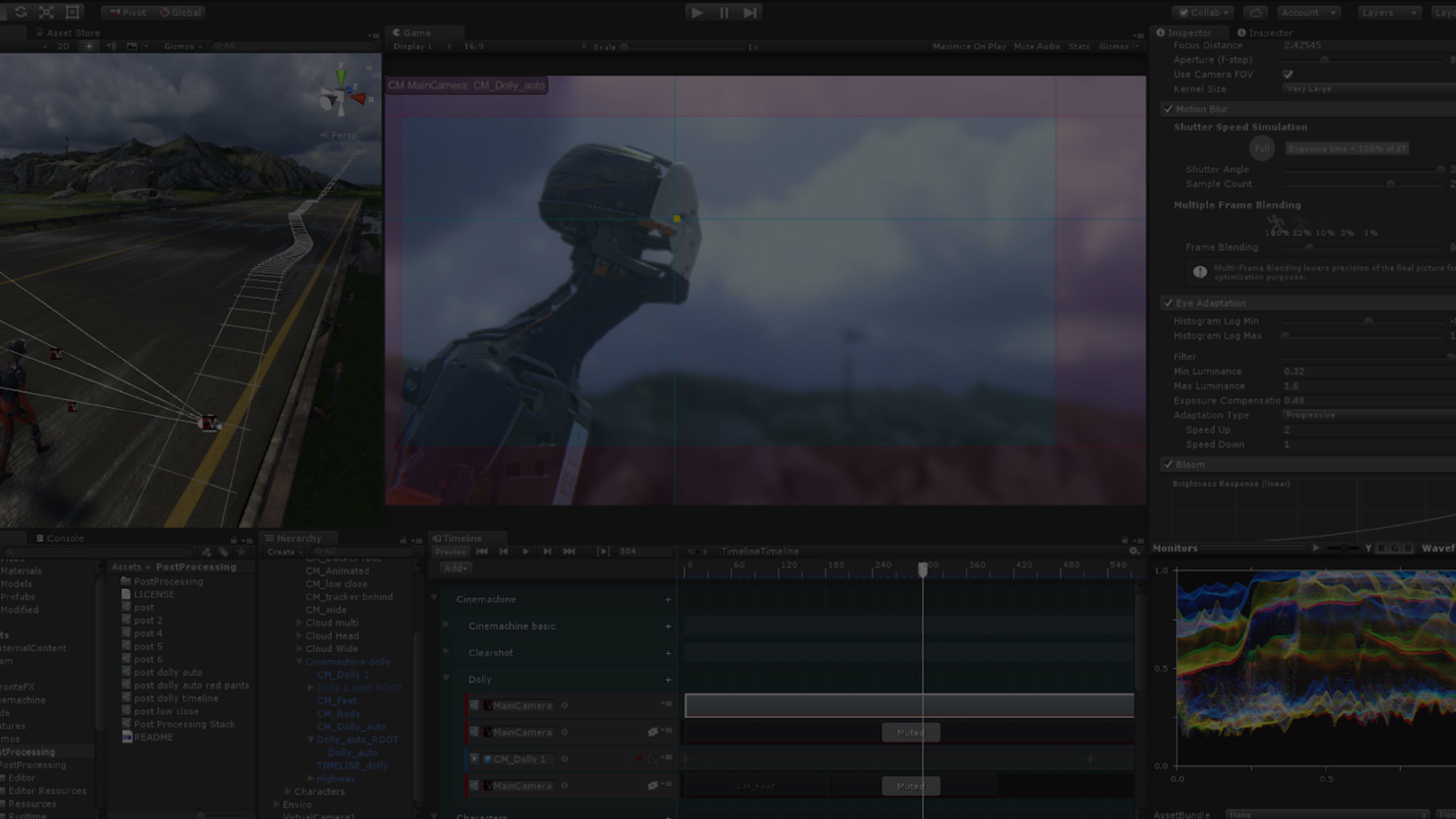
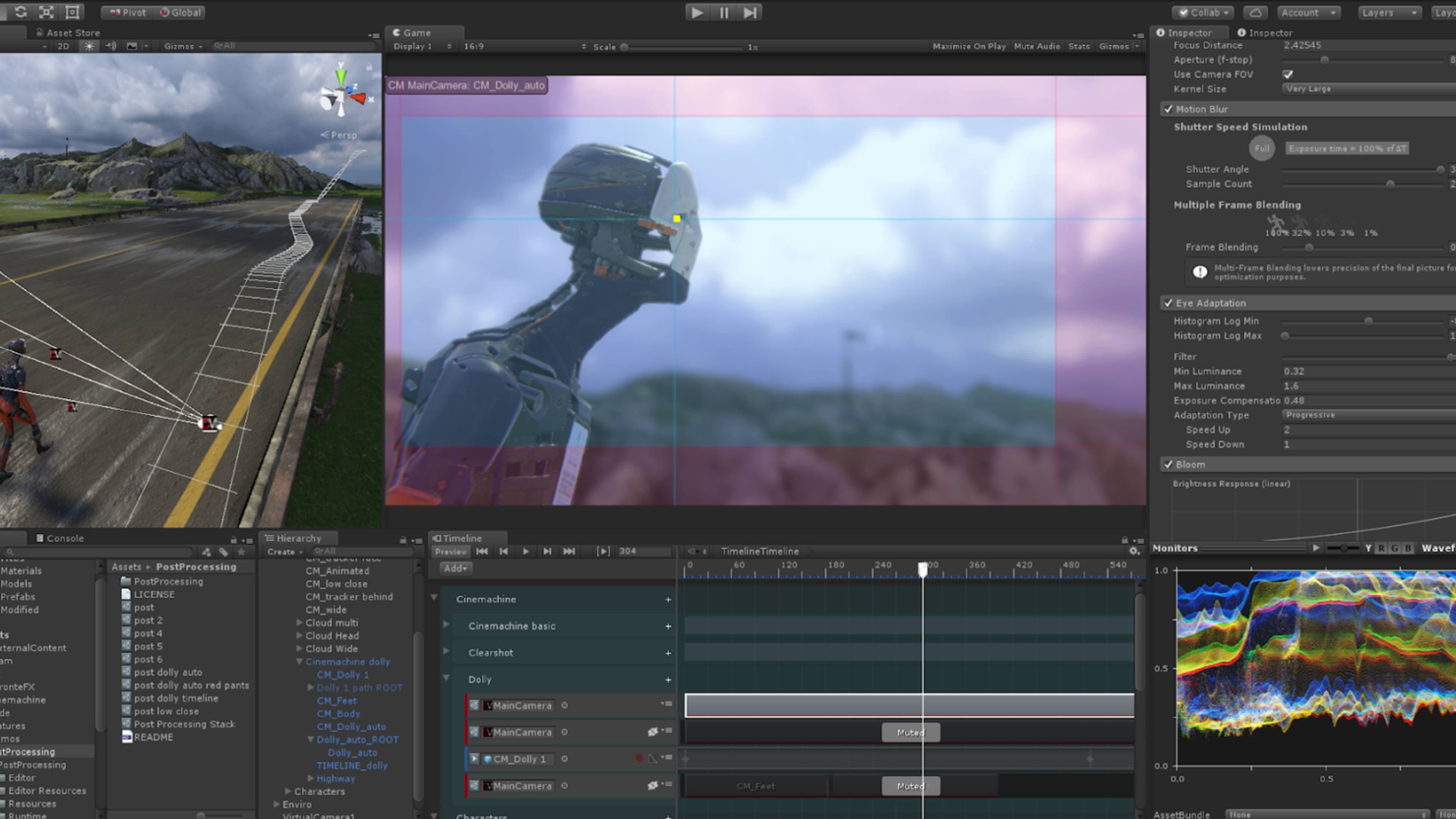
Cinemachine is a codeless and modular camera system, designed to easily compose sophisticated behaviors and the best shots based on scene composition. It lets you tune, iterate, experiment, and create camera moves in real-time.
Get started
Get started
Cinemachine camera module

Faster game development

From first-person shooter to follow cam, from 2D to 3D, and from real-time play to cutscene, Cinemachine frees your team from expensive camera-logic development and allows you to iterate and prototype new ideas on the fly while saving settings in Play mode. With the release of Unity 6, Cinemachine’s UI, API, and GameObject structure have been redesigned, making it faster and easier to implement intuitive game mechanics in linear production workflows.

Installing Cinemachine

Installing Cinemachine

Use the Unity Package Manager (in the top menu: Window > Package Manager) to select Cinemachine for installation.

Cinemachine is free and available for any project. If you already have it installed, you may update to the latest version.
  • Fundamental behaviors
  • Powerful features
  • Advanced control

Fundamental behaviors

Rotation Composer

+

Procedural targeting

Configure the camera so it automatically rotates to keep your subjects at any position in screen space. Rotation Composer allows for real-time procedural composition with controls for follow lag, width/height damping and even motion look-ahead to adjust framing like a pro.

Follow

+

Follow camera

Attach the camera to any object or set it to follow any object, with a wide range of options and behaviors. Set up how you’d like the camera to follow the object and it will do so under varying conditions.

Free Look

+

Orbit camera

Easily manage third-person action-adventure orbit cameras with an industry-proven sophisticated orbit camera rig, featuring numerous controls for orbit speed, shape, recentering, damping, and input type. Blend multiple Free Look cameras depending on game events for incredible control.

Cinemachine for 2D

+

Support for 2D-specific features

Cinemachine supports a number of 2D-specific features, including orthographic rendering and 2D framing, allowing you to compose, track, and follow objects. Setting up a powerful 2D camera is incredibly easy.

Target Groups

+

Track multiple subjects

Easily target a group of objects and adjust the weight and influence of each object in the group. Target Group provides dynamically configurable ways to track, compose, and adjust FOV and even camera position based on what multiple subjects are doing.

Custom Blends

+

Define relationships

Specify how any two cameras will blend together, useful in state-machine type setups where sophisticated blending relationships are desired. Since it’s an asset, you can create custom camera blend setups per level.

Powerful features

Impulse

+

Camera shakes

The Impulse module provides a complete camera-shake system. Setup Impulse sources on objects and the camera will respond appropriately based on scale and distance, with a six-dimensional shake that you can hand-craft or procedurally generate.

Mixer

+

Ultimate control

Customize your shots by mixing between up to eight virtual cameras, and control the mix manually, through Timeline, or by code. Mixer is an incredibly versatile system where multiple camera attributes can be combined to create the perfect shot under varying conditions.

Decollider and Deoccluder

+

Avoid obstacles

Easily manage and automate wall and object avoidance for any Cinemachine camera without any need for code. Decollider and Deoccluder provide multiple methods to help keep your camera from getting tangled with things in the world.

Confiner

+

Define limits

Define interior boundaries for your cameras that automatically prevent them from leaving specific volumes or areas, all with lower overhead than colliders.

Noise

+

Shake it up

Easily add handheld motion or any other type of shake to cameras without keyframing or using presets or manual controls. Cinemachine’s multilayered Perlin noise system also has a visual graph display so you can see exactly what’s happening.

Priority

+

Control camera priority

Easily control the priority of cameras in large state-machine setups so that the most desired camera plays in any scenario.

SplitScreen and Picture-in-Picture

+

Assign cameras easily

Easily configure multiple Cinemachine Brains to allow for picture-in-picture, split screen, or quad split screen. Assign Cinemachine cameras to any or all Brains and even blend from single to split screen and back.

Follow Zoom

+

Dynamic zoom setting

Automatically get subjects the right size on screen in scenarios where character positions could be variable. The camera will dynamically set zoom to ensure subjects are the desired screen size, no matter what. Great for interactive dialog scenes.

Post-Processing Stack integration

+

Custom looks for cameras

Create custom looks for each Cinemachine camera and blend between them. Cinemachine supports post-processing profiles and will cut or blend those settings along with whatever the cameras are doing.

Clear Shot

+

Always cut to a good shot

If something gets between the character or subject, Clear Shot will pick the best camera based on evaluation of the shot. An amazing feature for replays or cutscenes with variable scenarios.

Advanced control

Tracking

+

Virtual camera operators

The camera automatically follows the action, just like a camera operator would. Cinemachine gives you myriad controls for how cameras should follow the action. Just set up your shots – change the performances and the shots still work.

Post-Processing

+

Color grade each shot

Post-processing, color grading, lens emulation, depth of field, and more live on each shot. If you change the edit, the color grade changes with it. Blend shots on Timeline and everything else blends, too. A new, powerful, and incredibly fast way of working.

Shot Blender

+

Rapid preproduction

Timeline lets you blend Cinemachine clips, creating animation. Set up your shot sequences and blend them over the desired duration. You’ll get smooth camera motion up and running in seconds.

Lens Packs

+

Your case of lenses

Cinemachine lens packs allow you to set a list of favorite lenses as dropdown selections. Add consistency to your project by limiting focal lengths to a preset kit, just like on a film set.

Using Cinemachine
Using Cinemachine

Get up and running quickly to create and tune cameras.

Get started
Ask Discussions

Resources

Types of Cinemachine cameras

Unity Tips: Cinemachine Tutorials

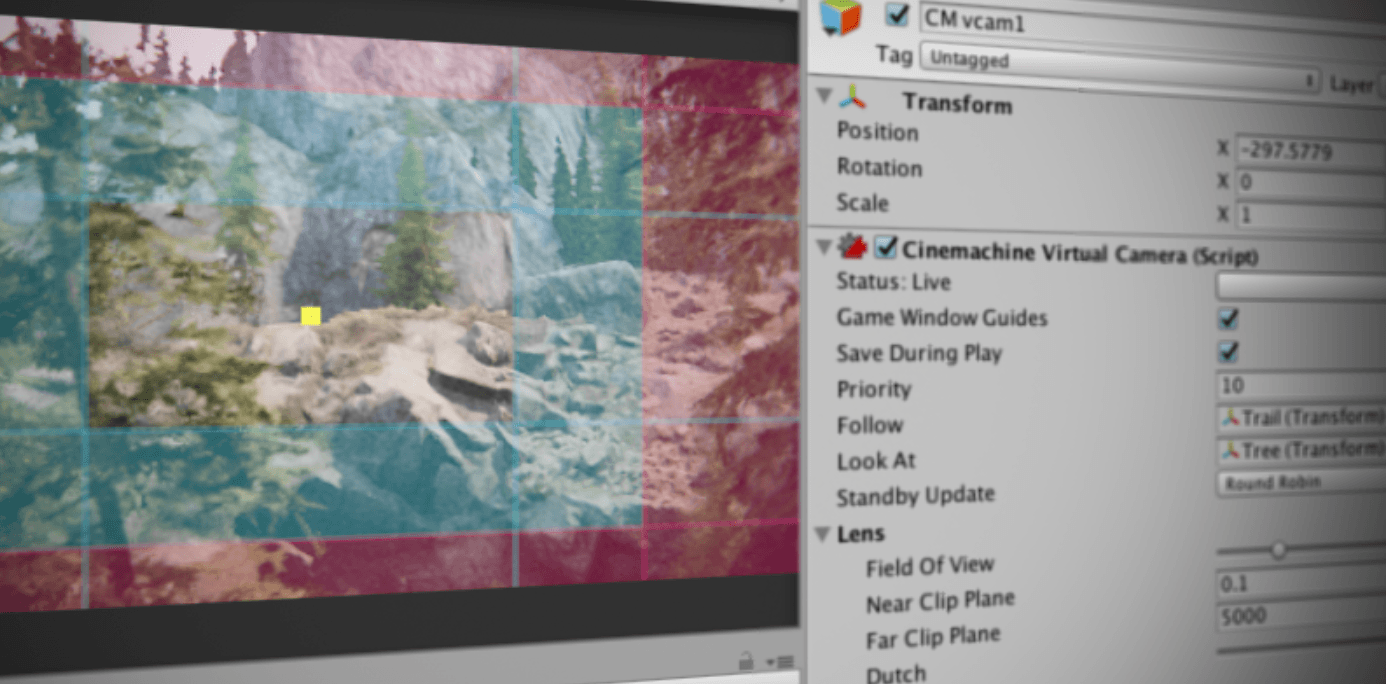
This series of five video tutorials offers tips and tutorials on how to get started with Cinemachine.
Watch the series
Get started with Cinemachine

Start using Cinemachine

Get the essential information to understand how Cinemachine works and follow instructions to set up the minimum functional layers to start using Cinemachine in your project.
Get started
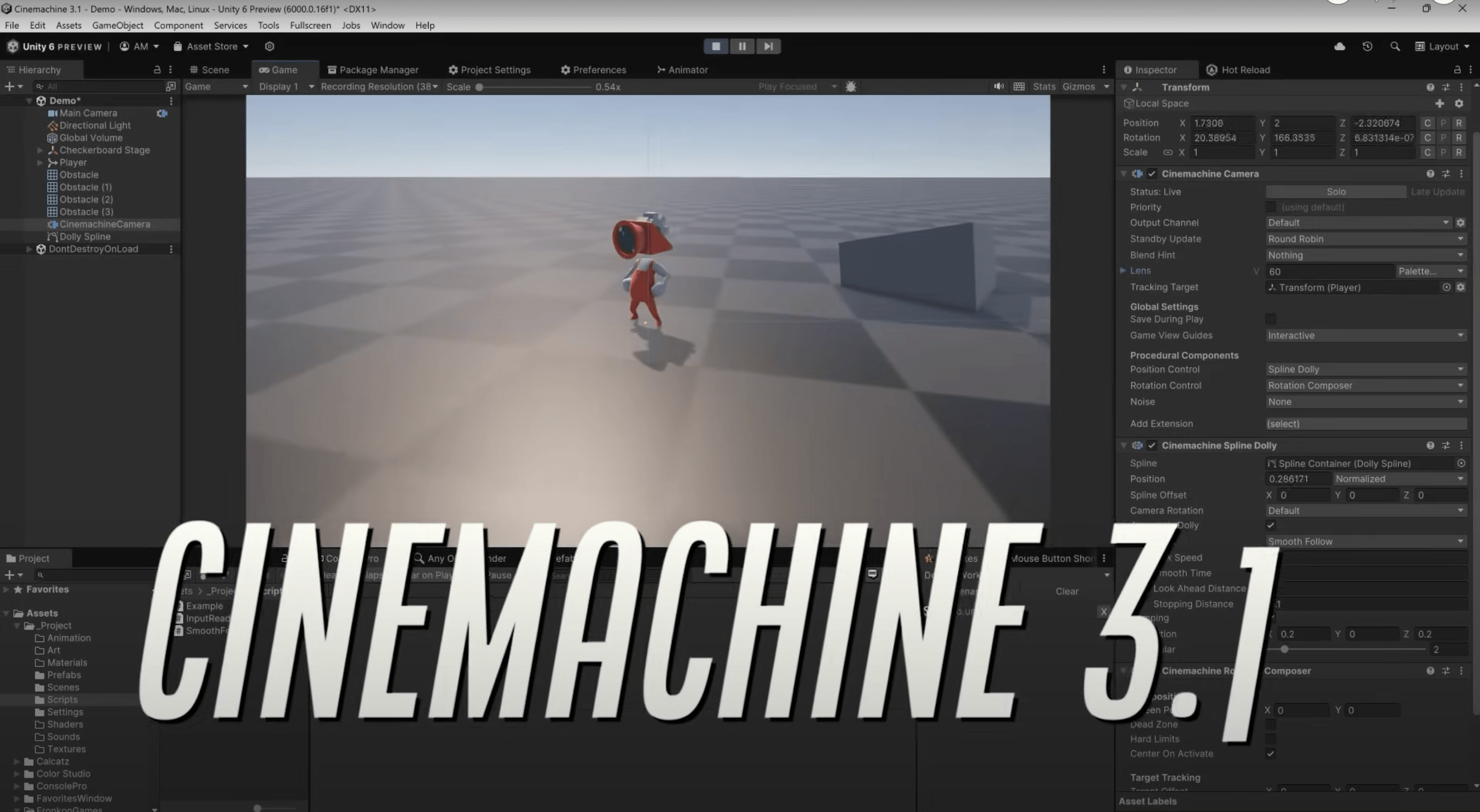
Essential Elements of Cinemachine 3.1

Essential Elements of Cinemachine 3.1

Learn what is new in Cinemachine 3.1 and find out what's changed in the Cinemachine API and how you can upgrade your project to take advantage of the new features.

Watch now
See what’s new with Cinemachine 3

See what’s new with Cinemachine 3

In this blog you will learn what is new with Cinemachine 3 and you will see how the format has changed, bringing it in line with the rest of Unity.
Read now
Cinemachine tutorials

Cinemachine tutorials

This legacy learning content shows you the features and uses for Cinemachine to see if it's right for your projects. You will learn how to build a planetary scale visualization, how you can add a Cinemachine Camera and Brain to your project, and more.

Start learning